AI Dropdown
A powerful dropdown component supporting single select, multi-select, search, grouping, and multiple visual appearances.
Loading...
Overview
Resources
Install
yarn add @camp/ai-dropdownUsage
Set up ThemeProvider
The AiDropdown component requires a styled-components ThemeProvider to be set up in your application. See the Styled Components & ThemeProvider guide for more details on setting up the ThemeProvider.
Single select (basic)
import { AiDropdown, DropdownMenuItem } from '@camp/ai-dropdown';
import { useState } from 'react';

// This matches the basicOptions used in the Default story
const options = [
  { label: 'Option 1', id: 'opt-1' },
  { label: 'Option 2', id: 'opt-2' },
  { label: 'Option 3', id: 'opt-3' },
];

const MyDropdown = () => {
  const [value, setValue] = useState();

  return (
    <AiDropdown
      appearance="default"
      type="single"
      options={options}
      value={value}
      onSelect={setValue}
      renderDisplayValue={(option) => option.label}
      renderMenuItem={(option, args) => (
        <DropdownMenuItem {...args} id={option.id}>
          {option.label}
        </DropdownMenuItem>
      )}
      placeholder="Select an option"
    />
  );
};
Multi-select with search
import { AiDropdown, DropdownMenuItem } from '@camp/ai-dropdown';
import { useState } from 'react';

const options = [
  { label: 'List Item 1', id: 'list-item-1' },
  { label: 'List Item 2', id: 'list-item-2' },
  { label: 'List Item 3', invalid: true, id: 'list-item-3' },
  { label: 'List Item 4', id: 'list-item-4' },
  { label: 'List Item 5', id: 'list-item-5' },
];

const MyMultiDropdown = () => {
  const [selectedOptions, setSelectedOptions] = useState([]);

  return (
    <AiDropdown
      appearance="default"
      type="multi"
      options={options}
      value={selectedOptions}
      onSelect={setSelectedOptions}
      renderDisplayValue={(option) => option.label}
      renderMenuItem={(option, args) => (
        <DropdownMenuItem {...args} id={option.id} invalid={option.invalid}>
          {option.label}
        </DropdownMenuItem>
      )}
      showSearch={true}
      placeholder="Select an option..."
    />
  );
};
Grouped options with accordion
Options with the same group property are automatically grouped together and sorted alphabetically by group name.
import { AiDropdown, DropdownMenuItem } from '@camp/ai-dropdown';
import { useState } from 'react';

const groupedOptions = [
  { label: 'React', group: 'Frontend Frameworks' },
  { label: 'Angular', group: 'Frontend Frameworks' },
  { label: 'Vue.js', group: 'Frontend Frameworks' },
  { label: 'Node.js', group: 'Backend Technologies' },
  { label: 'Python', group: 'Backend Technologies' },
  { label: 'PostgreSQL', group: 'Databases' },
  { label: 'Redis', group: 'Databases', invalid: true },
  { label: 'MongoDB', group: 'Databases' },
  { label: 'Git' },
];

const GroupedDropdown = () => {
  const [value, setValue] = useState();

  return (
    <AiDropdown
      appearance="default"
      type="single"
      value={value}
      onSelect={setValue}
      options={groupedOptions}
      renderDisplayValue={(option) => option.label}
      renderMenuItem={(option, args) => (
        <DropdownMenuItem {...args} id={option.id} invalid={option.invalid}>
          {option.label}
        </DropdownMenuItem>
      )}
      placeholder="Select an option..."
      accordionGroups={['Backend Technologies', 'Databases']}
    />
  );
};
Link options
Add external or internal navigation links within the dropdown menu. Link options are rendered as <a> tags, display with an “External Link” icon and “Connect” text, and do not trigger the onSelect callback.
import { AiDropdown, DropdownMenuItem } from '@camp/ai-dropdown';
import { useState, useMemo } from 'react';
import { SocialWixMedium, SocialZendeskMedium } from '@camp/icon';

type MyOption =
  | { label: string; value: string }
  | { link: true; label: string; href: string; target?: string; rel?: string };

const DropdownWithLinks = () => {
  const [value, setValue] = useState();

  const options: MyOption[] = useMemo(
    () => [
      { label: 'Edit Settings', value: 'edit' },
      { label: 'View Profile', value: 'profile' },
      { divider: true }, // Visual separator
      {
        link: true,
        label: 'Wix',
        href: 'https://wix.com/connect',
        target: '_blank',
      },
      {
        link: true,
        label: 'Zendesk',
        href: 'https://zendesk.com/connect',
        target: '_blank',
      },
    ],
    [],
  );

  return (
    <AiDropdown<MyOption>
      type="single"
      value={value}
      onSelect={setValue}
      options={options}
      renderDisplayValue={(opt) => ('link' in opt ? opt.label : opt.label)}
      renderMenuItem={(option, args) => (
        <DropdownMenuItem {...args} id={option.label}>
          {option.label}
        </DropdownMenuItem>
      )}
      placeholder="Select action"
    />
  );
};
Link Option Properties:
link: true- Marks the option as a link (required)label- Display texthref- URL destinationtarget- Link target (_blank,_self, etc.)rel- Link relationship (defaults tonoopener noreferrerfortarget="_blank")
Behavior:
- Rendered as
<a>elements with proper href - Display “Connect” text and external link icon automatically
- Close menu on click but don’t trigger
onSelect - Support keyboard navigation (Enter/Space)
Action options (non-selectable)
Create action items that execute a function without changing the selected value. These are useful for commands like “Refresh”, “Open Settings”, or “Add New”.
import { AiDropdown, DropdownMenuItem } from '@camp/ai-dropdown';
import { useState, useMemo } from 'react';

type MyOption =
  | { label: string; value: string }
  | { label: string; nonSelectable: true; onClick: (e: React.MouseEvent) => boolean | void };

const DropdownWithActions = () => {
  const [value, setValue] = useState();

  const options: MyOption[] = useMemo(
    () => [
      { label: 'Option 1', value: 'opt1' },
      { label: 'Option 2', value: 'opt2' },
      { divider: true },
      {
        label: 'Open Settings',
        nonSelectable: true,
        onClick: (e) => {
          console.log('Opening settings...');
          // Return true or nothing to close menu
          return true;
        },
      },
      {
        label: 'Refresh Data',
        nonSelectable: true,
        onClick: (e) => {
          console.log('Refreshing...');
          // Return false to keep menu open
          return false;
        },
      },
    ],
    [],
  );

  return (
    <AiDropdown<MyOption>
      type="single"
      value={value}
      onSelect={setValue}
      options={options}
      renderDisplayValue={(opt) => opt.label}
      renderMenuItem={(option, args) => (
        <DropdownMenuItem {...args} id={option.label}>
          {option.label}
        </DropdownMenuItem>
      )}
      placeholder="Select or perform action"
    />
  );
};
Action Option Properties:
nonSelectable: true- Marks the option as action-only (required)label- Display textonClick: (e: React.MouseEvent) => boolean | void- Click handler- Return
falseto keep menu open after click - Return
trueor nothing to close menu after click
- Return
Behavior:
- Execute onClick without changing selected value
- Menu closes by default (unless onClick returns
false) - Don’t affect multi-select checkbox state
- Support keyboard navigation
- Perfect for commands that don’t represent a selection
Dividers
Add visual separators between options or groups to improve visual organization:
const options = useMemo(
  () => [
    { label: 'Edit', value: 'edit' },
    { label: 'Duplicate', value: 'duplicate' },
    { divider: true }, // Visual separator
    { label: 'Delete', value: 'delete', invalid: true },
  ],
  [],
);
Divider Properties:
divider: true- Marks the option as a divider (required)
Behavior:
- Renders as a horizontal line separator
- Not selectable or focusable
- Filtered out during search
- Use sparingly for important visual grouping
With label and custom styling
import { AiDropdown, DropdownMenuItem } from '@camp/ai-dropdown';
import { useState } from 'react';

const options = [
  { id: 'opt-1', label: 'Option 1' },
  { id: 'opt-2', label: 'Option 2' },
  { id: 'opt-3', label: 'Option 3' },
];

const LabeledDropdown = () => {
  const [value, setValue] = useState();

  return (
    <AiDropdown
      appearance="default"
      type="single"
      value={value}
      onSelect={setValue}
      options={options}
      label="Category"
      labelPosition="left" // or "top"
      renderDisplayValue={(option) => option.label}
      renderMenuItem={(option, args) => (
        <DropdownMenuItem {...args} id={option.id}>
          {option.label}
        </DropdownMenuItem>
      )}
      placeholder="Select"
    />
  );
};
Variations
Toggle theming
Prop: themed
Type: boolean
Default value: true
The themed prop toggles light and dark mode support for the AiDropdown component. This makes the component adaptable to areas of the product that support theme switching, such as AI agent interfaces or other areas with dark mode capabilities, as well as standard application areas that only support light mode.
When to use themed:
- ✅ If you need light mode support only, use
themed={false}. This is useful in standard application areas that only support light mode. - ❌ If you need light and dark mode support, themed is not required as it is set to
trueby default. This is useful in AI agent interfaces or other areas with dark mode capabilities. - 🔨 If light and dark mode support is not working as expected, try explicitly setting
themed={true}(and check that your component has been updated to the latest version).
Behavior:
- Without
themedprop (or withthemed={true}): AiDropdown will be themed, supporting light and dark mode styling - With
themed={false}: AiDropdown will not respond to theme changes and display in light mode only
import { AiDropdown } from '@camp/ai-dropdown';

function UnthemedDropdown() {
  return (
    <AiDropdown<OptionType>
      themed={false} // explicitly set to false to disable theming
      type="single"
      appearance="default"
      value={undefined}
      onSelect={() => {}}
      renderDisplayValue={(option) => option.label}
      options={basicOptions}
      placeholder="Unthemed default dropdown"
      renderMenuItem={(option, args) => (
        <DropdownMenuItem {...args} id={option.id} invalid={option.invalid}>
          {option.label}
        </DropdownMenuItem>
      )}
    />
  );
}
Invalid states
Invalid styling adapts to each appearance - red borders for default and inline, red text for floating.
Default
Inline
Floating
const InvalidDropdown = () => {
  return (
    <AiDropdown
      invalid={true}
      ...{/* your other props here */}
    />
  );
};
Value prefix
Add visual indicators like color dots or icons before the display value.
const Dot = ({ color }) => (
  <span
    style={{
      display: 'inline-block',
      width: 10,
      height: 10,
      borderRadius: '50%',
      background: color,
      marginRight: 8,
      flex: '0 0 auto',
    }}
  />
);

const ColorDropdown = () => {
  return (
    <AiDropdown
      renderValuePrefix={(current) =>
        current && !Array.isArray(current) ? <Dot color={current.color} /> : null
      }
      ...{/* your other props here */}
    />
  );
};
Custom trigger
Replace the default button with any custom trigger element like icon buttons.
import { AiIconButton } from '@camp/ai-icon-button';
import { SettingsCogMedium } from '@camp/icon';

const CustomTriggerDropdown = () => {return (
    <AiDropdown
      renderTrigger={(props) => (
        <AiIconButton appearance="secondary" shape="rectangle" size="medium" {...props}>
          <SettingsCogMedium title="Settings" />
        </AiIconButton>
      )}
      ...{/* your other props here */}
    />
  );
};
Menu actions
Add custom buttons or actions at the bottom of the dropdown menu with the renderMenuActions prop.
import { AiButton } from '@camp/ai-button';

const MenuActionsDropdown = () => {
  return (
    <AiDropdown
      renderMenuActions={() => (
        <div
          style={{
            display: 'flex',
            justifyContent: 'center',
            alignItems: 'center',
            padding: '8px 12px',
          }}
        >
          <AiButton
            appearance="secondary"
            size="small"
            onClick={() => alert('Add new label')}
            style={{ width: '100%' }}
          >
            Add new label
          </AiButton>
        </div>
      )}
      ...{/* your other props here */}
    />
  );
};
Search functionality
The search input filters options by both label and group name, with a “No results” state when no matches exist.
const SearchableDropdown = () => {
  return (
    <AiDropdown
      showSearch={true}
      ...{/* your other props here */}
    />
  );
};
Disabled state
To achieve a disabled state, the disabled value should be passed to the default trigger button using buttonProps.
const DisabledDropdown = () => (
  <AiDropdown
    buttonProps={{ disabled: true }}
    ...{/* your other props here */}
  />
);
Advanced configurations
The dropdown supports several advanced configuration options for fine-tuning behavior and appearance.
const AdvancedDropdown = () => {
  return (
    <AiDropdown
      // Portal rendering to avoid clipping issues
      usePortal={true}

      // Custom z-index for stacking control
      zIndex={1000}

      // Minimum menu width
      minMenuWidth="200px"

      // Theme support (defaults to true)
      themed={true}

      // Custom placement
      placement="bottom-start"

      // Full width menu
      fullWidthMenu={true}

      // Maximum menu height (defaults to 300px)
      maxMenuHeight={400}

      ...{/* your other props here */}
    />
  );
};
Advanced Patterns
Complete example: Tool selection with links and actions
This example demonstrates combining multiple option types (regular options, links, actions, and dividers) in a single dropdown:
import { useState, useMemo, useCallback } from 'react';
import { AiDropdown, DropdownMenuItem } from '@camp/ai-dropdown';
import { AiButton } from '@camp/ai-button';
import { AiIconButton } from '@camp/ai-icon-button';
import { RefineTogglesSmall, CloseSmall } from '@camp/icon';
import { SocialWixMedium, SocialZendeskMedium, ContactsMedium, PencilMedium } from '@camp/icon';

type ToolOption =
  | { label: string; value: string; icon: ReactNode }
  | { link: true; label: string; href: string; target: string; icon: ReactNode }
  | { divider: true };

function ToolSelectionDropdown() {
  const [selectedTool, setSelectedTool] = useState<ToolOption>();

  const options: ToolOption[] = useMemo(
    () => [
      // Link options for external integrations
      {
        link: true,
        label: 'Wix',
        href: 'https://wix.com/connect',
        target: '_blank',
        icon: <SocialWixMedium />,
      },
      {
        link: true,
        label: 'Zendesk',
        href: 'https://zendesk.com/connect',
        target: '_blank',
        icon: <SocialZendeskMedium />,
      },
      { divider: true },
      // Regular selectable options
      {
        label: 'Add contacts',
        value: 'add-contacts',
        icon: <ContactsMedium />,
      },
      {
        label: 'Select content',
        value: 'select-content',
        icon: <PencilMedium />,
      },
    ],
    [],
  );

  const renderMenuItem = useCallback((option: ToolOption, menuItemProps: any) => {
    const opt = option as any;

    return (
      <DropdownMenuItem {...menuItemProps}>
        <span style={{ display: 'flex', alignItems: 'center', gap: '8px' }}>
          {opt.icon && <span style={{ display: 'flex' }}>{opt.icon}</span>}
          <span style={{ flex: 1 }}>{opt.label}</span>
        </span>
      </DropdownMenuItem>
    );
  }, []);

  const renderTrigger = useCallback(
    (props: any) => {
      const { 'aria-expanded': ariaExpanded, 'aria-haspopup': ariaHaspopup, open, ...rest } =
        props;

      return (
        <AiButton
          size="small"
          appearance="secondary"
          {...rest}
          aria-expanded={ariaExpanded === 'true' || ariaExpanded === true}
          aria-haspopup={ariaHaspopup === 'true' || ariaHaspopup === true}
        >
          <RefineTogglesSmall title="Tools" />
          <span>{selectedTool?.label ?? 'Select Tool'}</span>
          {selectedTool && (
            <AiIconButton
              appearance="transparent"
              size="small"
              onClick={(e) => {
                e.stopPropagation(); // Prevent dropdown toggle
                setSelectedTool(undefined);
              }}
            >
              <CloseSmall title="Clear" />
            </AiIconButton>
          )}
        </AiButton>
      );
    },
    [selectedTool],
  );

  return (
    <AiDropdown<ToolOption>
      type="single"
      value={selectedTool}
      onSelect={setSelectedTool}
      options={options}
      renderDisplayValue={(opt) => opt.label}
      renderMenuItem={renderMenuItem}
      renderTrigger={renderTrigger}
      showSearch
      minMenuWidth="300px"
      placeholder="Select tool"
    />
  );
}
Key features demonstrated:
- Mixed option types: Regular options, link options, and dividers
- Custom trigger: Button with icon and clear functionality
- Custom menu items: Icons rendered for each option
- Link behavior: External links open in new tab without affecting selection
- Search enabled: Filter options by label
Props reference
The AI Dropdown component supports a comprehensive set of props for customization:
AiDropdown Props
| Prop | Type | Default | Description |
|---|---|---|---|
type | 'single' | 'multi' | 'single' | Selection mode |
value | T (single) or T[] (multi) | — | Currently selected value(s) |
onSelect | (value: T | T[]) => void | Required | Callback when selection changes |
options | T[] | Required | Array of options (supports mixed types) |
renderDisplayValue | (option: T) => string | Required | Convert option to display string |
renderMenuItem | (option: T, props) => ReactNode | — | Custom rendering for menu items |
placeholder | string | — | Placeholder when no selection |
appearance | 'default' | 'inline' | 'floating' | 'default' | Visual style of trigger |
showSearch | boolean | false | Enable search input in menu |
showSelectAll | boolean | true | Show “Select All/None” (multi-select only) |
accordionGroups | string[] | [] | Group names that should be collapsible |
label | string | — | Trigger label text |
labelPosition | 'top' | 'left' | 'left' | Label positioning |
invalid | boolean | false | Error state styling |
minMenuWidth | string | — | Minimum menu width (e.g., “200px”) |
maxMenuHeight | string | number | 300 | Maximum menu height in pixels |
fullWidthMenu | boolean | false | Menu matches trigger width |
maxTriggerWidth | string | '100%' | Maximum trigger width |
minTriggerWidth | string | — | Minimum trigger width |
placement | Placement | 'bottom-end' | Menu position relative to trigger |
usePortal | boolean | false | Render menu in portal (escapes stacking context) |
asModal | boolean | false | Render as mobile-style overlay modal |
zIndex | number | — | Custom z-index for menu |
renderTrigger | (props) => ReactNode | — | Custom trigger component |
renderMenuActions | () => ReactNode | — | Footer actions/buttons |
renderValuePrefix | (value: T) => ReactNode | — | Prefix content before selected value |
buttonProps | object | — | Additional props spread to trigger button |
onOpenChange | (isOpen: boolean) => void | — | Callback when menu opens/closes |
themed | boolean | true | Enable theme-aware styling |
Option Types
The dropdown supports multiple option types through discriminated unions:
Standard Option:
type StandardOption = {
  label: string;
  value: string;
  group?: string; // Optional group name for automatic categorization
  invalid?: boolean; // Show in destructive/error styling
  icon?: ReactNode; // Optional icon
};
Link Option:
type LinkOption = {
  link: true; // Required discriminator
  label: string;
  href: string;
  target?: '_blank' | '_self';
  rel?: string;
  icon?: ReactNode;
};
Behavior:
- Rendered as
<a>tags with proper href - Shows “Connect” + external link icon
- Closes menu on click but doesn’t trigger
onSelect - Supports keyboard navigation (Enter/Space)
Action Option (Non-Selectable):
type ActionOption = {
  label: string;
  nonSelectable: true; // Required discriminator
  onClick: (e: React.MouseEvent) => boolean | void;
  icon?: ReactNode;
};
Behavior:
- Executes onClick handler
- Returns
falseto keep menu open,true/void to close - Doesn’t change selected value
- Perfect for commands and actions
Divider:
type DividerOption = {
  divider: true; // Required discriminator
};
Behavior:
- Renders as visual separator line
- Not selectable or focusable
- Filtered out during search
Grouped Option:
Options with the same group property are automatically organized under group headers and sorted alphabetically:
type GroupedOption = StandardOption & {
  group: string; // Group name for automatic categorization
};
Best practices
Selection & Data Size:
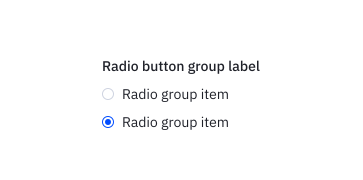
- Dropdown menus work best for small data sets where a user has anywhere from 5 to 15 items to choose from. For smaller datasets, checkboxes or radios should be used (depending on single or multiselect), and for datasets larger than 15, it is recommended to use a combobox instead.
- Use single-select for mutually exclusive choices (status, category, assignee)
- Use multi-select for filters, tags, or bulk selections
Grouping & Organization:
- When grouped, listed items should be in some logical order that makes it easy for the user to read and understand, whether that is numerical or alphabetical or some other contextually-based grouping.
- Use groups for options with 10+ items across multiple categories
- Make groups collapsible (
accordionGroups) when there are 4+ groups - Use dividers sparingly for important visual separation
Link vs Action Options:
- Use link options for external resources (documentation, settings pages, integration connections)
- Use action options (nonSelectable + onClick) for commands that don’t change the selected value (e.g., “Refresh”, “Add New”, “Clear All”)
- Return
falsefrom onClick to keep menu open for multi-step flows - Use dividers to separate different types of options visually
Search & Performance:
- Enable
showSearchfor option lists with 7+ items - Use
showSelectAllin multi-select mode for quick bulk operations - Memoize
optionsarray to prevent recreating on every render - Memoize
renderMenuItemandrenderTriggercallbacks withuseCallback
Mobile Considerations:
- Use
asModalfor mobile-first experiences requiring full-screen focus - Test touch interactions thoroughly
- Ensure minimum touch target sizes (44x44px)
Accessibility
Keyboard support
- Tab: Navigate to/from the dropdown trigger
- Space/Enter: Open dropdown when focused on trigger
- Arrow keys: Navigate options, links, and actions when menu is open
- Home: Jump to first option
- End: Jump to last option
- Enter/Space (on option): Select option or execute action
- Enter/Space (on link): Navigate to link destination
- Escape: Close dropdown menu and return focus to trigger
Screen reader support
- Proper ARIA attributes (
aria-haspopup,aria-expanded,aria-controls) - Role-based markup (
buttonfor trigger,menufor dropdown) - Link options properly announced as links with correct hrefs
- Action options announced as buttons
- Selected items indicated via checkmark icon or checkbox
- Group headers properly labeled
- Disabled states communicated semantically
Focus management
- Active option highlighted and scrolled into view automatically
- Focus returns to trigger on menu close
- Tab moves focus outside dropdown (closes menu)
- Search input receives focus when menu opens (if
showSearchenabled) - Keyboard navigation works seamlessly across all option types (standard, links, actions)
Comparison: AiDropdown vs NestedMenu
Both components offer dropdown selection interfaces but are optimized for different use cases:
| Feature | AiDropdown | NestedMenu |
|---|---|---|
| Best for | Single dropdown menus with flat or grouped options | Deep hierarchical navigation (3+ levels) |
| Nesting | 1 level (groups) | Unlimited levels (menu-groups) |
| Search | ✅ Inline search | ✅ Persistent search |
| Multi-select | ✅ Checkbox mode | ❌ Single-select only |
| Inline inputs | ❌ | ✅ TYPE.INPUT with validation |
| Link options | ✅ link: true | ✅ Custom link patterns |
| Action options | ✅ nonSelectable + onClick | ✅ onClick without selection |
| Accordion groups | ✅ Collapsible groups | ✅ Hierarchical menu-groups |
| Form integration | ✅ Label, invalid, helper text | ✅ NestedMenuDropdownTrigger |
| Dividers | ✅ divider: true | ✅ Visual separators |
Use AiDropdown when:
- You need multi-select with checkboxes
- Options fit in 1-2 levels (flat or grouped)
- Standard dropdown/select pattern is expected
- You need link options for external resources
- You need action options that don’t change selection
Use NestedMenu when:
- You have deep hierarchical data (3+ levels)
- You need inline input fields within the menu
- You’re building navigation or complex drill-down UIs
- Back navigation between levels is important