Modal
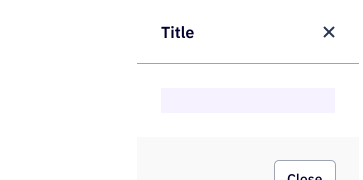
Modals focus the user on a single task or message by temporarily blocking interaction with the rest of the UI. Use them for confirmations, critical warnings, or short focused flows. The authoritative package is @camp/modal.
Loading...
Loading...
Overview
Resources
Install
yarn add @camp/modalProps
| Prop | Type | Default | Description |
|---|---|---|---|
isOpen * | boolean | — | Whether the modal is open |
onClose * | () => void | — | Callback to close the modal |
title † | string | — | |
renderFooter | ReactNode | — | Footer to render inside the modal |
renderInPortal | boolean | false | Whether to render the modal in a portal |
width | "small" | "large" | small | Width of the modal |
themed | boolean | false | Whether to apply the theme |
aria-label | string | — | |
style † | CSSProperties | — | |
onOverlayClick | (onClose: () => void) => void | — | Callback to handle the overlay click |
aria-describedby † | string | — | Identifies the element (or elements) that describes the object. @see aria-labelledby |
as | "div" | "form" | div | The HTML tag to render the modal as |
id † | string | — | |
onKeyDown † | KeyboardEventHandler<HTMLDivElement> | — | |
onSubmit † | FormEventHandler<HTMLDivElement> | — | |
children | ReactNode | — | Children to render inside the modal |
Generated from @camp/modal@6.22.0 source, ordered by production usage. * required. † standard HTML attribute — all native attributes are supported; only those with production usage are listed.
Upgrading to Next Gen
🧩 Single component from @camp/modal: Use the Modal component with isOpen, onClose, optional title or aria-label, and optional renderFooter and width.
🔆 Optional theming: Use the themed prop when the app is wrapped in ThemeProvider for light/dark support.
♿ Accessibility: Provide either a title (used as the visible heading and for screen readers) or an aria-label when the modal has no visible title.
Variations
Default Modal (Playground)
The default modal includes a header (from title or aria-label), body content, optional footer via renderFooter, and a close control. Use it for confirmations and short forms.
import { Modal } from '@camp/modal';

<Modal
  isOpen={isOpen}
  onClose={() => setIsOpen(false)}
  title="Modal title"
  renderFooter={<Button>Primary action</Button>}
>
  <Text as="p">Modal body content.</Text>
</Modal>;
With Title
Modal with a visible title. Use for most dialogs where the heading is shown.
import { Modal } from '@camp/modal';

<Modal isOpen={isOpen} onClose={() => setIsOpen(false)} title="Modal With Title">
  <Text as="p" appearance="body-small">
    This is the default modal appearance with basic content.
  </Text>
</Modal>;
Without Title (aria-label)
When the modal has no visible title, provide an aria-label for accessibility so screen readers can name the dialog.
import { Modal } from '@camp/modal';

<Modal isOpen={isOpen} onClose={() => setIsOpen(false)} aria-label="Confirmation dialog">
  <Text as="p" appearance="body-small">
    When a modal has no visible title, aria-label is required for accessibility.
  </Text>
</Modal>;
With Footer
Use renderFooter to add primary and secondary actions (e.g. Cancel and Confirm).
import { Modal } from '@camp/modal';
import { Button } from '@camp/button';

<Modal
  isOpen={isOpen}
  onClose={() => setIsOpen(false)}
  title="Long Content Modal"
  renderFooter={
    <>
      <Button appearance="secondary" size="medium">
        Cancel
      </Button>
      <Button appearance="primary" size="medium">
        Confirm
      </Button>
    </>
  }
>
  <Text as="p" appearance="body-small">
    Modal body content.
  </Text>
</Modal>;
As Form
Use the as="form" prop when the modal contains a form so the container is a native form element. Add form fields as children and use renderFooter for Submit and Cancel actions.
import { Modal } from '@camp/modal';
import { Button } from '@camp/button';
import { Input } from '@camp/ai-input';

<Modal
  isOpen={isOpen}
  onClose={() => setIsOpen(false)}
  title="Modal With a Form"
  as="form"
  renderFooter={
    <>
      <Button appearance="secondary" size="medium">
        Cancel
      </Button>
      <Button appearance="primary" size="medium">
        Submit
      </Button>
    </>
  }
>
  <Input label="Name" />
  <Input label="Email" />
</Modal>;
Modal Width
Use the width prop to choose small or large so the modal fits the amount of content and stays readable.
import { Modal } from '@camp/modal';

<Modal isOpen={isOpen} onClose={() => setIsOpen(false)} title="Wide content" width="large">
  <Text as="p">Use width="large" for more content or forms.</Text>
</Modal>;
Themed Modal
When your app uses ThemeProvider, set themed={true} so the modal respects light and dark theme. See the Styled Components & ThemeProvider guide for setup.
import { Modal } from '@camp/modal';

<Modal isOpen={isOpen} onClose={() => setIsOpen(false)} title="Themed modal" themed>
  <Text as="p">Content adapts to the active theme.</Text>
</Modal>;
Usage
Use the Modal when you need the user to acknowledge information or complete a short task before returning to the main view. Control visibility with isOpen and onClose, and provide either a title or an aria-label for accessibility.
import { useState } from 'react';
import { Modal } from '@camp/modal';
import { Button } from '@camp/button';
import { Text } from '@camp/text';

function Example() {
  const [isOpen, setIsOpen] = useState(false);
  return (
    <>
      <button onClick={() => setIsOpen(true)}>Open modal</button>
      <Modal
        isOpen={isOpen}
        onClose={() => setIsOpen(false)}
        title="Confirm action"
        renderFooter={<Button onClick={() => setIsOpen(false)}>Confirm</Button>}
      >
        <Text as="p">Are you sure you want to continue?</Text>
      </Modal>
    </>
  );
}
Best Practices
- Use modals sparingly; they interrupt the user's workflow and block the rest of the application until dismissed.
- Prefer modals for confirmations, conditional changes, important warnings, and short focused input (e.g. renaming a campaign).
- For longer flows or when the user needs to reference other content, consider a drawer or fullscreen takeover.
- Do not stack modals. Use steps inside a single modal to break a longer flow into sections.
- Do not use a modal when the user needs information that is not available inside the modal to make a decision.
Content Guidelines
Write modal headers in sentence case with no trailing punctuation. Be clear and concise, and include articles like "a" and "the" for clarity and translation.
✅ DO
-
Add a new account
-
Create a new form
-
Connect your Calendly contacts
🚫 DON’T
-
Add Account
-
Create New Form
-
Connect Calendly
Accessibility
The Modal uses Base UI under the hood, which provides focus management and appropriate ARIA attributes for dialogs.
Keyboard Support
- Use Space or Enter on the trigger control to open the modal.
- Tab moves focus into the modal: first to the header close button, then through the body and footer actions.
- Space or Enter activates focused buttons and links in the footer.
- Escape closes the modal when supported by the implementation.
Screen Readers
- Provide either a
titleor anaria-labelso the modal has an accessible name. Usearia-labelwhen there is no visible title.