Skeleton
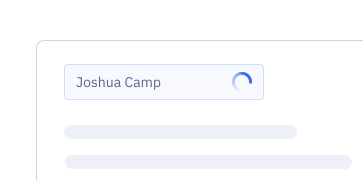
Skeleton loading mitigates the wait by providing a perceived sense of movement and activity. It puts the user’s focus on what is loading. The package exposes a default skeleton for simple body text plus Skeleton.Text and Skeleton.Shape for structured placeholders.
Loading...
Overview
Resources
Install
yarn add @camp/skeletonProps
Skeleton.Shape
| Prop | Type | Default | Description |
|---|---|---|---|
appearance | "rectangle" | "square" | "circle" | rectangle | The type of shape to use. |
borderRadius | string | radii200 | If using "rectangle" or "square" appearance, optionally override the border radius. |
height | string | sp900 | If using "rectangle" appearance, optionally set height. By default the height matches buttons and inputs. |
maxWidth | string | 100% | Maximum width of the shape. Shape will still compress responsively. If "square" or "circle" appearances, the height will match the width. |
repeat | number | 1 | Number of times to repeat the shape. Useful for simulating an array of things like templates, avatars, etc. When repeat is greater than 1, shapes are wrapped in a flex container with wrap enabled. You can override any styles on the container using the `styles={{}}` attribute. You can set a `gridGap` style to set space between each shape, and set the `alignItems` and `justifyContent` styles to further assign how things are distributed. |
Generated from @camp/skeleton@3.11.0 source, ordered by production usage. * required.
Skeleton.Text
| Prop | Type | Default | Description |
|---|---|---|---|
appearance | "body" | "heading" | "eyebrow" | body | Text style to match with. |
lines | number | — | Repeat over a number of lines to form a paragraph. |
maxWidthPercentage | number | 100 | Max width, also used as a ceiling when `randomizeWidth` is true. |
minWidthPercentage | number | 75 | Minimum width as a percentage, primarily used as a floor when `randomizeWidth` is true. |
randomizeWidth | boolean | — | Useful for simulating varying widths of text. When used with `lines`, it will randomize the width of each line. |
size | "medium" | "large" | "small" | "xSmall" | "xLarge" | small | Text size to match with. Each appearance has particular options that work with it. |
textAlign | "center" | "left" | "right" | left | Sets the alignment of the text shapes. |
Generated from @camp/skeleton@3.11.0 source, ordered by production usage. * required.
Upgrading to Next Gen
The Skeleton component is published as @camp/skeleton (replacing @activecampaign/camp-components-skeleton).
🧩 Compound API: Use Skeleton.Text for typography-shaped placeholders (body, heading, eyebrow) and Skeleton.Shape for rectangles, squares, and circles (images, avatars, rows).
🎨 Layout-aware props: Text supports lines, randomizeWidth, textAlign, and width percentages. Shape supports repeat for lists of placeholders and maxWidth / height / borderRadius for layout control.
🔆 Styling: Skeleton continues to use Camp’s styled layer so it matches surrounding typography and surfaces when your app provides the usual Camp / styled-components setup.
Migration steps
- Remove
@activecampaign/camp-components-skeletonand install@camp/skeleton. - Keep default usage as
import Skeleton from '@camp/skeleton'— the default export renders body-style text, same as before. - Prefer
Skeleton.TextandSkeleton.Shapewhere you need explicit appearances (see Variations).
Variations
Playground (Composite)
Combined heading text, multi-line body, and a rectangular shape — useful as a reference layout.
import Skeleton from '@camp/skeleton';

<>
  <Skeleton.Text appearance="heading" size="large" />
  <Skeleton.Text appearance="body" size="small" lines={3} randomizeWidth />
  <Skeleton.Shape appearance="rectangle" maxWidth="100%" />
</>;
Text (Multiple Lines)
Use lines to mimic paragraphs; pair with randomizeWidth so each line width varies naturally.
import Skeleton from '@camp/skeleton';

<Skeleton.Text appearance="body" size="small" lines={4} />;
Shape (Circle)
Use appearance="circle" with maxWidth for avatars or icon placeholders; use repeat for a row of items.
import Skeleton from '@camp/skeleton';

<Skeleton.Shape appearance="circle" maxWidth="80px" />;
Card Layout
Combine Skeleton.Shape and Skeleton.Text to mirror card content (media area, title, body).
import Skeleton from '@camp/skeleton';

<div style={{ maxWidth: 400, display: 'flex', flexDirection: 'column', gap: 12 }}>
  <Skeleton.Shape appearance="rectangle" maxWidth="100%" />
  <Skeleton.Text appearance="heading" size="medium" maxWidthPercentage={60} />
  <Skeleton.Text appearance="body" size="small" lines={3} randomizeWidth />
</div>;
Usage
Best practices
- Use skeletons when content structure is predictable but data or media is still loading, so layout does not jump when the real UI appears.
- Combine with the loading indicator when you need a compact spinner for a control or indeterminate inline wait rather than a full content block.
- Avoid showing skeleton flash for very fast requests (under roughly 400ms) where it can feel noisy.
Content guidelines
✅ DO
-
Match
appearanceandsizeonSkeleton.Textto the real text styles that will replace them. -
Use
Skeleton.Shapewithrepeatfor grids or lists of similar items (e.g. avatar rows). -
Use
randomizeWidthon multi-line body placeholders so lines do not look unnaturally identical.
🚫 DON’T
-
Don’t rely on skeleton copy as real content — always swap to live content when data is ready.
-
Don’t stack unrelated skeleton blocks without spacing; mirror the final layout’s rhythm.
-
Don’t use skeleton states where a simple loading indicator is clearer (tiny controls, icon-only actions).
Accessibility
Skeleton placeholders are non-interactive and implemented as styled blocks (no role or focus). They are intended as visual stand-ins while content loads.
- Keyboard: No keyboard behavior — skeletons do not receive focus.
- Screen readers: Treat skeleton UI as decorative relative to the eventual content. Prefer
aria-busy="true"on the loading region (or an equivalent pattern) while content is loading, and ensure that when real content mounts, status updates are conveyed appropriately (e.g.aria-liveon meaningful summaries where your product pattern requires it). - Invalid props: If
minWidthPercentageis greater thanmaxWidthPercentage,Skeleton.Textrenders nothing and logs an error — fix percentages to avoid silent blank UI.